 ChatTiger
Test your agent before you turn it on
Before your agent talks to a customer, give it a try. There are two ways: the simulator in your dashboard, where nobody gets anything, and test accounts, on real Instagram.
The simulator
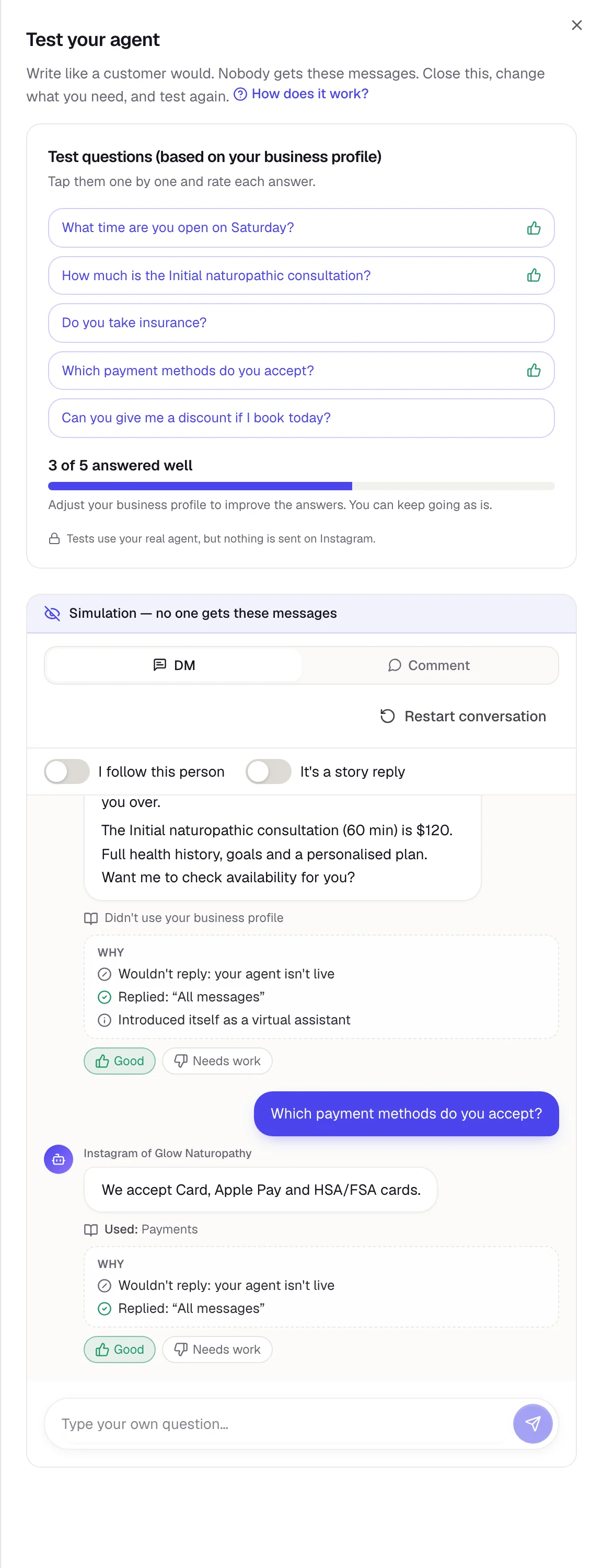
Open your agent and tap Test in the top right (it's on every tab). The simulator opens on the side. Write like a customer would, or tap the test questions.
 1
2
3
4
- 1Try a DM or simulate a Comment on a post.
- 2Test questions, built from your business profile. Tap them one by one.
- 3Used: the part of your business profile it read to answer.
- 4Tell it whether the answer was Good or Needs work.
- Use I follow this person and It's a story reply to test those cases.
- Don't like an answer? Improve your business profile and ask again.
- Restart conversation starts over from scratch.
To turn on your agent, you have to try it in the simulator at least once.
Your agent's 4 statuses
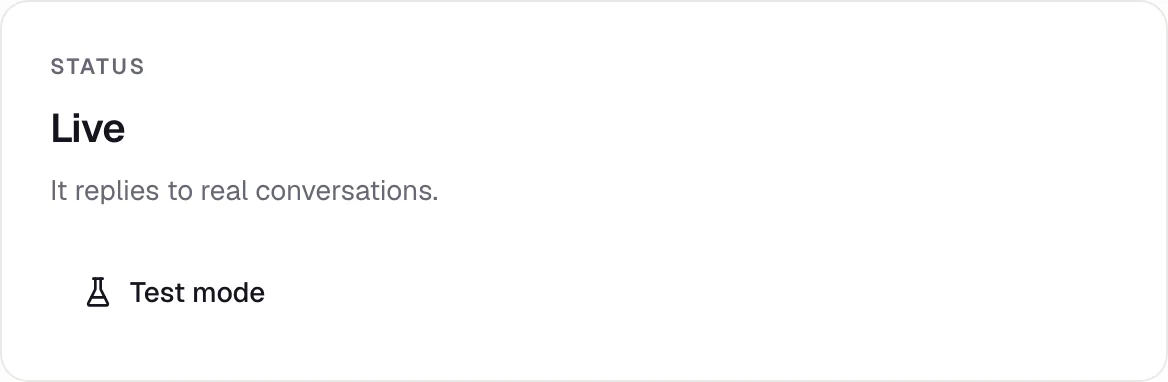
You'll find the status in Your agent → Overview. It tells you who your agent replies to.
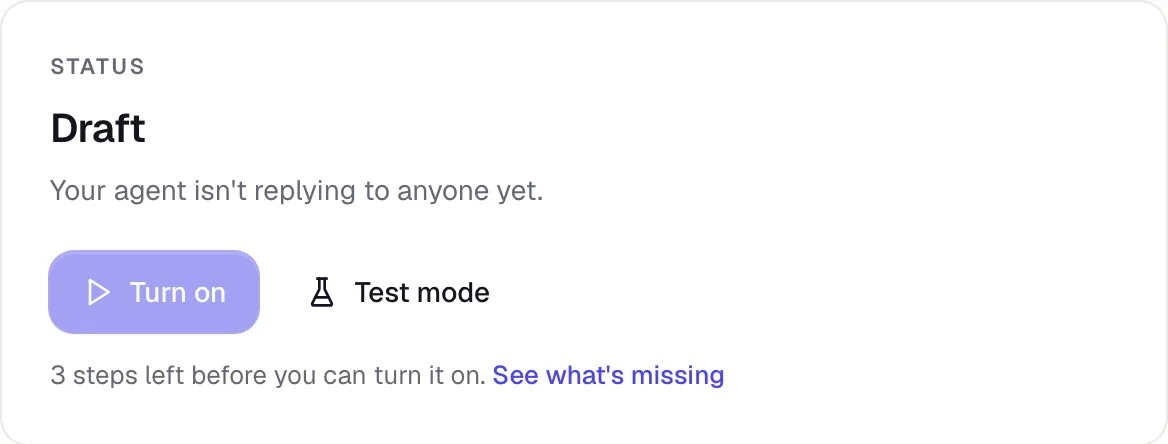
After that, you can switch between Test mode, Live, and Paused whenever you want. You can't go back to Draft.
Test on real Instagram with test accounts
A test account is an Instagram account of yours (or a teammate's) that isn't your business account. In Test mode, your agent replies only to those accounts, so you can try it out like a customer and your customers won't see a thing.
-
Get a code
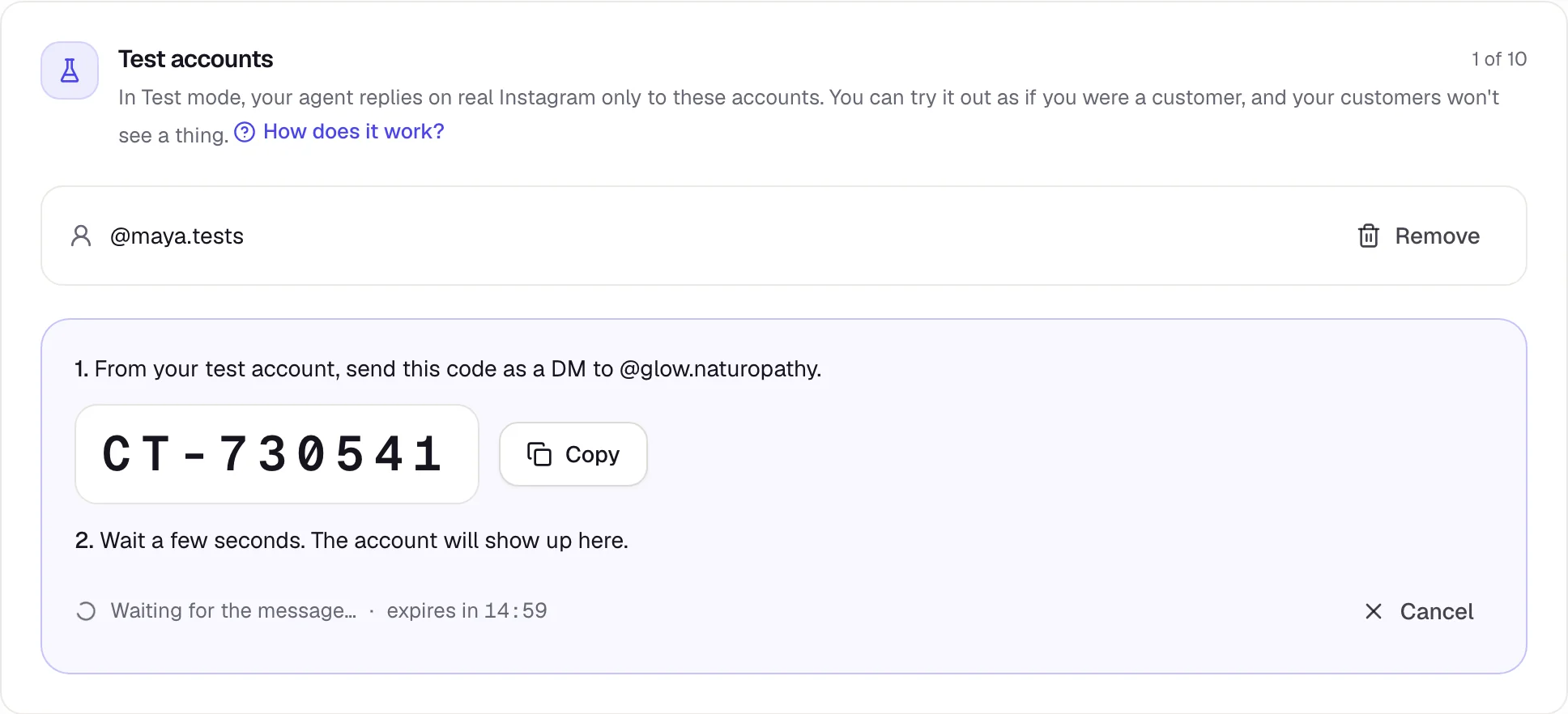
Go to Settings (in the menu) → Test accounts and tap Get a code.
-
Send the code as a DM
From your test account, send that code as a DM to your business account. In a few seconds it shows up in the list, and the test account gets a confirmation message.
The code lasts 15 minutes and works only once. You can have up to 10 test accounts.
-
Put your agent in Test mode
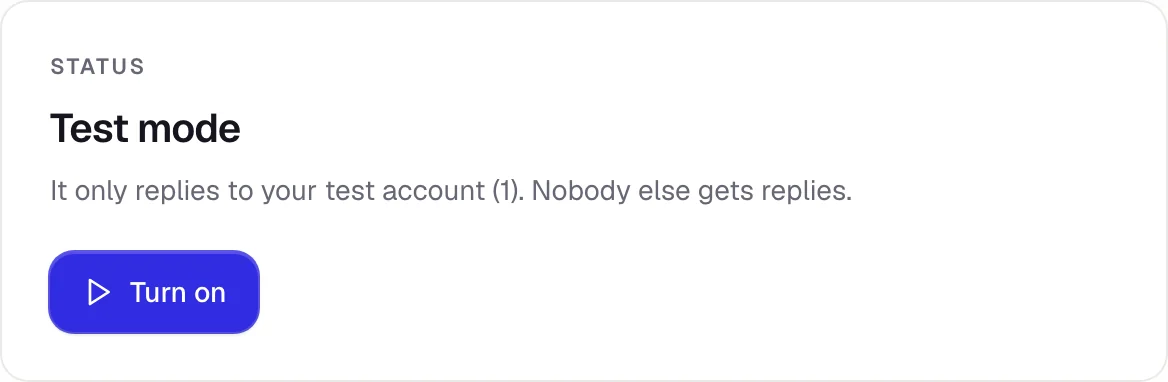
In Overview, tap Test mode. Now message or comment from your test account (for example, @maya.tests).
On Instagram on the web, card buttons don't show up. And check Requests in your DMs: the first message from a business usually lands there.
Turn it on
In Overview, the Setup checklist tells you what's missing. Turn on only works once the required items are done:
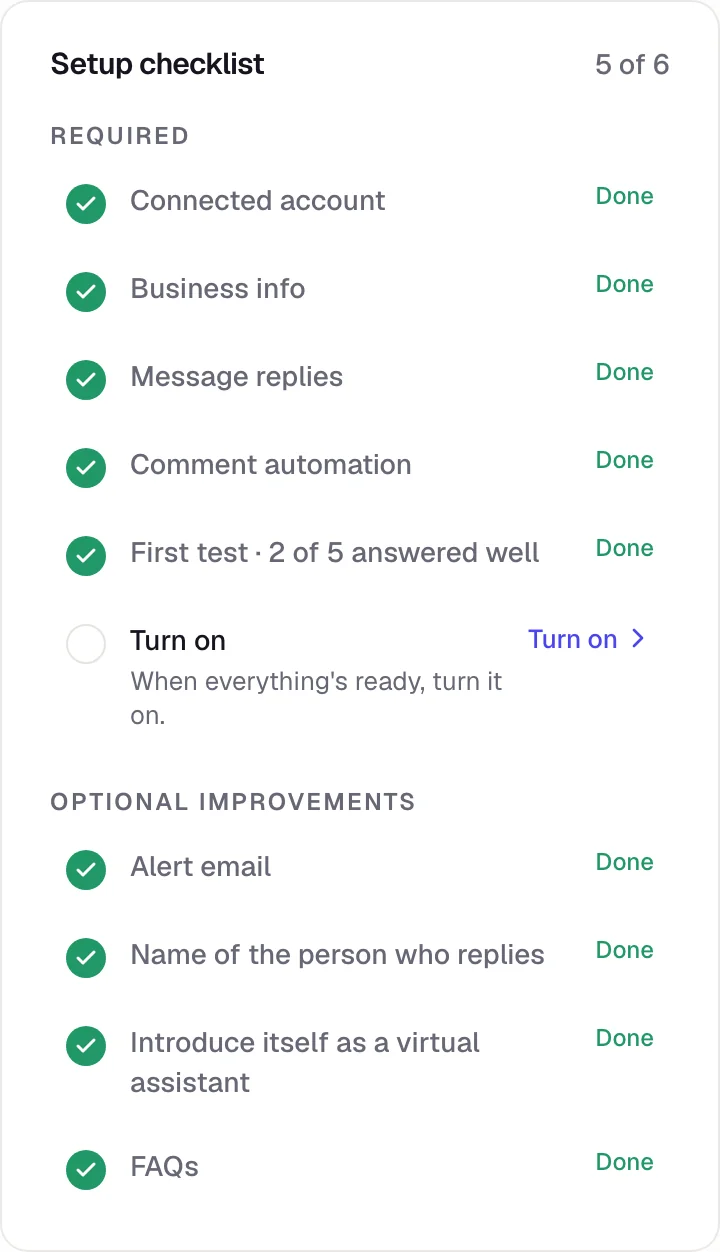
- Connected account: your Instagram is connected.
- Business info: "What your business does" with at least 80 characters.
- Message replies and Comment automation, if you chose to use them.
- First test in the simulator.
The Optional improvements (an alert email, the name of the person who helps customers, FAQs) don't block you, but they help a lot. When everything required is done, the list collapses to All set and only the pending improvements stay visible (tap Show steps to see everything).
Common problems
I'm in Test mode and my agent doesn't reply to me
Make sure you're writing from an account that's in your Test accounts list, not from your business account. With no test accounts, Test mode doesn't reply to anyone.
The test account code didn't work
It may have expired (it lasts 15 minutes) or already been used. Get a new one and send it exactly as shown, as a DM, to your business account.
It won't let me turn it on
Check the Setup checklist in Overview: it tells you what's missing and takes you there in one tap.