 ChatTiger
Connect your Instagram
Your agent starts handling your Instagram once you connect it. You don't need a Facebook Page, just a professional Instagram account.
The official Instagram connection
ChatTiger connects to your account the way Instagram offers businesses to do it, not by logging in as if it were you.
- You don't give us your password. You log in on Instagram's own screen. ChatTiger never sees or stores your password.
- We use the official Instagram API. It's the connection Meta offers businesses to handle messages and comments.
- Meta reviewed ChatTiger. Before letting us handle other businesses' accounts, Meta reviewed the app and approved every permission we ask for. It also verified our company.
- You decide how long it lasts. Remove access whenever you want: in ChatTiger with Disconnect, or in Instagram → Settings and activity → Website permissions → Apps and websites → remove ChatTiger. If you remove it from Instagram, we delete that account's Instagram data (we explain this in our Privacy policy).
Seen Instagram connections for Claude or ChatGPT that ask for your password? Here's why we don't recommend them.
Before you connect
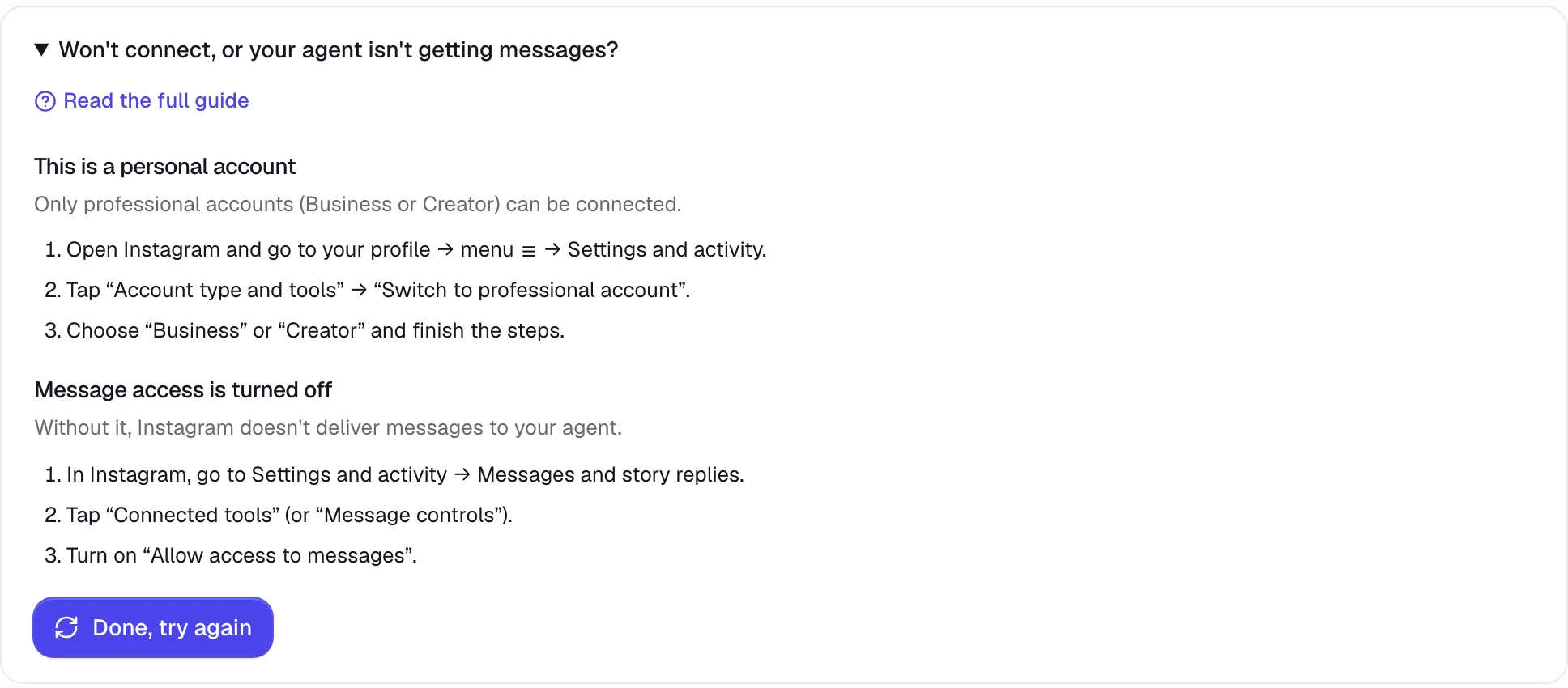
Personal accounts can't be connected. To switch, in the Instagram app go to your profile → menu ☰ → Settings and activity → Account type and tools → Switch to professional account and choose Business or Creator. It's free. Keep in mind that professional accounts are public: you can't make them private.
Before you connect, open instagram.com in the browser you use for the dashboard and log in with your business account. If you see a different account logged in, switch accounts first.
Connect
-
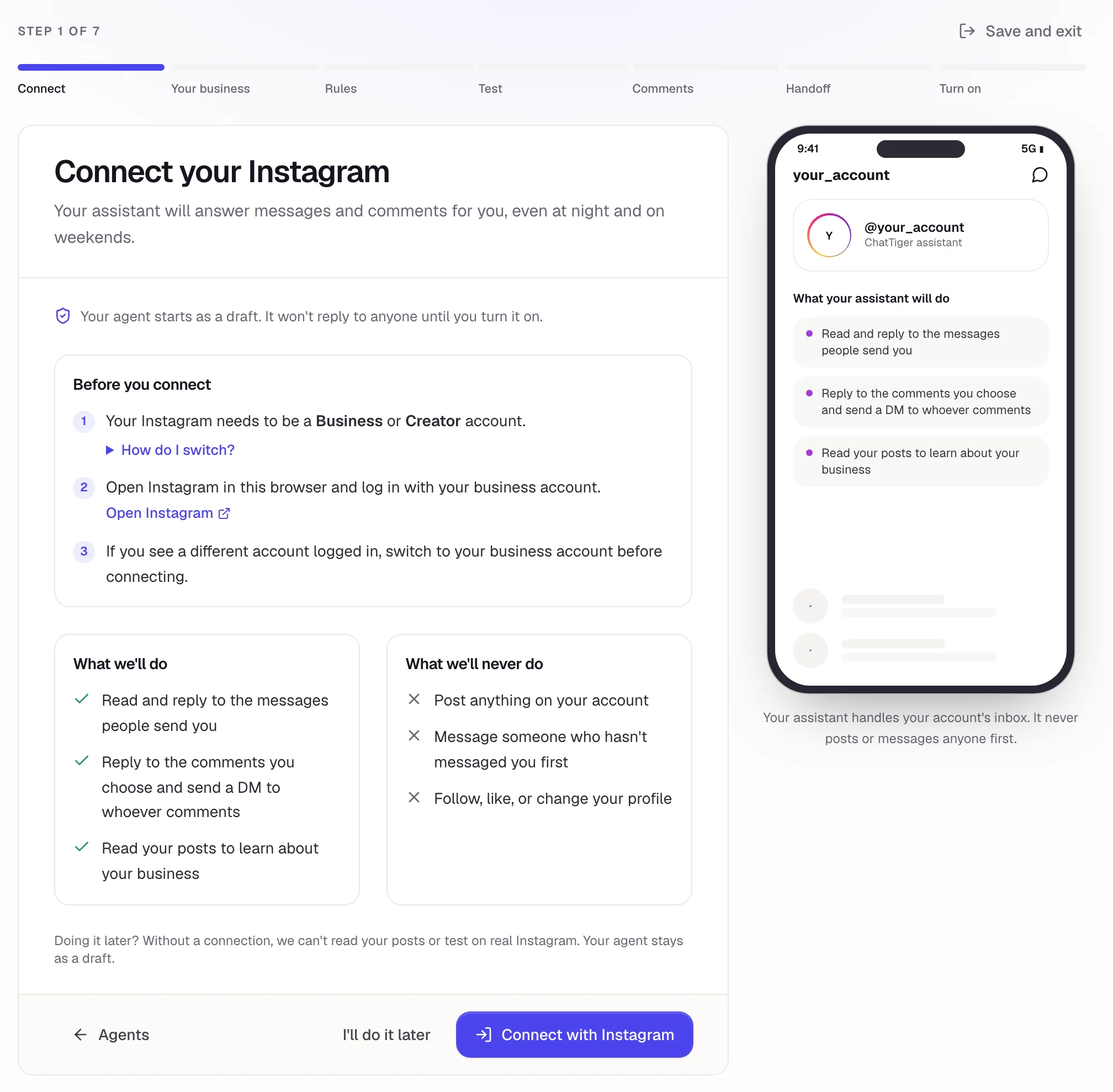
Tap “Connect with Instagram”
You'll see it in the first step when you create your agent. If you skipped it, go to Settings → Connected account in the menu.
 1
2
3
- 1Go through this list before you connect.
- 2I'll do it later: you keep going without connecting. Your agent stays a draft.
- 3Connect with Instagram: takes you to Instagram.
-
Accept every permission
Instagram shows you what ChatTiger will be able to do. Accept all of it: if you turn off a permission, the connection fails and the dashboard tells you “You need to accept all the permissions Instagram asks for so the bot can work.”
It will: read and reply to the messages people send you, reply to the comments you choose, send a DM to people who comment (if you set that up), and read your posts to learn about your business.It will never: post on your account, message someone first who hasn't messaged or commented, follow, like, or change your profile. -
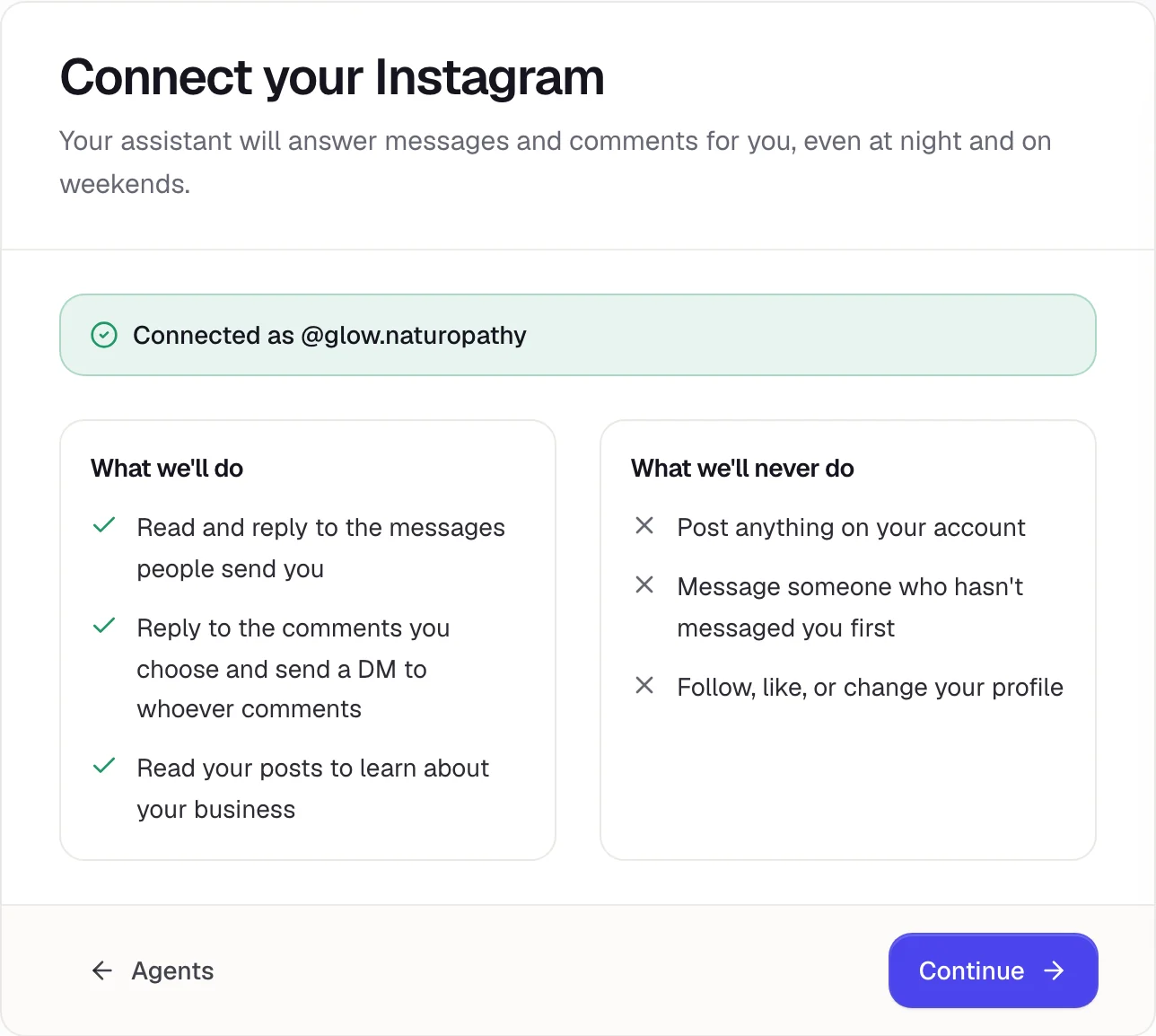
Done: “Connected as @your_account”
You're back in the dashboard and you'll see your account connected. Tap Continue to keep setting up your agent.
Turn on “Allow access to messages”
Without this setting, Instagram won't deliver messages to your agent, even when the account is connected. Check it once in the Instagram app:
- Go to Settings and activity → Messages and story replies → Message controls.
- Tap Connected tools (in some versions it's right under Messages and story replies).
- Turn on Allow access to messages.
Check your connection
In Settings → Connected account you'll see the account, when it was connected and how long the access lasts. Access renews on its own.
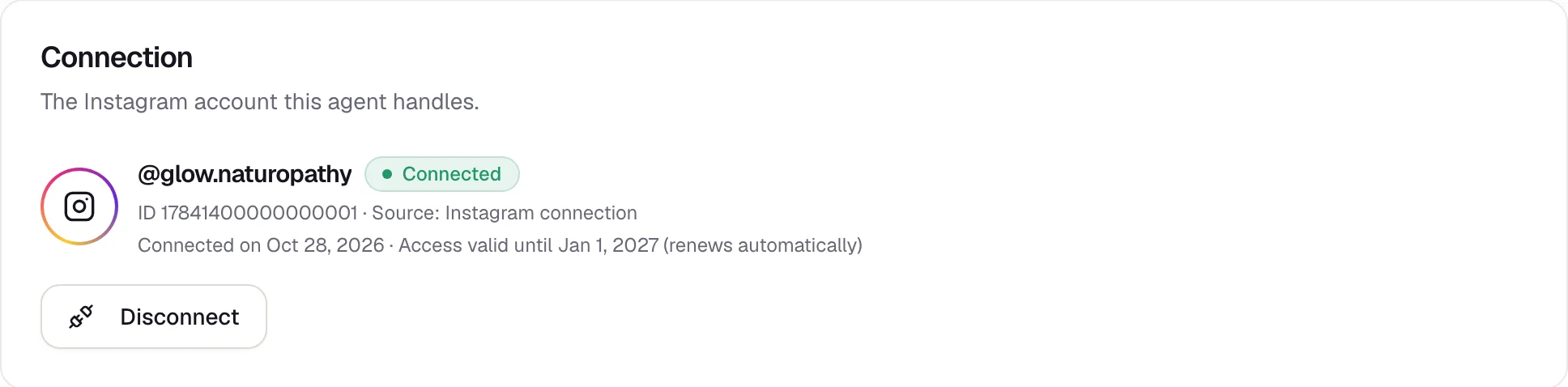
If you tap Disconnect, your agent stops replying on that account. Your rules and conversations are kept, and you can reconnect whenever you want.
Each agent handles one Instagram account, and each account can only be in one agent. Have two accounts? Create an agent for each one.
After you connect
With your account connected, here's what's next and where to find it in the dashboard:
- Tell it about your business in Your agent → Knowledge, or let the AI fill it in. → Guide
- Create your first comment rule in Automations, in the menu on the left. → Guide
- Try it out with the Test button at the top right of your agent: the simulator opens alongside and nobody gets anything. → Guide
- Turn it on from Your agent → Overview once the Setup checklist says everything is ready.
- See how it's going in Home (who needs you, what your agent did and which rules get the most replies) and in Inbox. → Guide
If it won't connect
In Settings, open Won't connect, or your agent isn't getting messages?. It walks you through the two most common problems, step by step:
“You canceled the connection on Instagram.”
You closed or declined the Instagram screen. Tap Connect with Instagram again and accept.
“Instagram didn't finish connecting.”
Almost always, the account is personal or you weren't logged in to Instagram in that browser. Switch it to professional, log in to instagram.com with your business account and try again.
“That Instagram account is already connected to another assistant.”
Another agent is already handling that account. Disconnect it there, or use that agent.
“The connection link expired or was already used.”
Too much time went by on the Instagram screen. Try again from the dashboard.
I got an email: “Instagram: reconnect your account”
Instagram cut off access, for example because you changed your password. Go to Settings and tap Reconnect. Your setup stays the same.
What about Claude or ChatGPT connections that ask for your password?
Connections that let Claude or ChatGPT read and answer your Instagram messages are all the rage. Some use the official API and send you to Instagram to log in, just like ChatTiger. Many of the free ones don't: they get into your account as if they were you, with your username and password.
What they look like
They're usually MCP servers (the pieces that give Claude or ChatGPT tools) that you download from GitHub or an MCP directory. To install them, you're asked to type your Instagram username and password into a config file, something like this:
"env": {
  "INSTAGRAM_USERNAME": "your_username",
  "INSTAGRAM_PASSWORD": "your_password"
}
Others ask you to copy the cookies or the sessionid from your Instagram session, or to install a browser extension that runs your account. Under the hood, many use instagrapi, a library that calls itself an “unofficial” Instagram API and that, according to its own docs, is mostly meant for testing and research.
What you're risking
- Getting blocked or losing your account. Instagram's Terms of Use don't allow accessing accounts or collecting information in automated ways without its permission. When Instagram spots that kind of access, it can ask you to verify yourself, limit what you can do, or suspend or disable the account. If it's disabled, you lose your followers, your posts and your conversations.
- Your password sits in a file. It's written in plain text on your computer. Anyone who gets that file, or your cookies, can get into your account.
- The AI can do anything on your account. With your password, there are no permissions to limit it: it can message anyone, follow, like or delete. It also reads messages from strangers, and a message with hidden instructions can get it to do something you never asked for.
- Messages that look like spam. Messaging people first who never wrote to you, from an automated login, is exactly what Instagram flags as suspicious activity.
- It breaks without warning. When Instagram updates its app, these connections stop working and your customers go unanswered. Nobody is accountable for them.
- Your customers' data. Their messages go through tools Meta never reviewed.
If a tool asks for your Instagram password on its own page, in a file or in a chat, it isn't official. The official one always sends you to Instagram to log in and shows you the list of permissions you're granting.
Change your Instagram password: that cuts off its access. Then go to Settings and activity → Website permissions → Apps and websites, remove anything you don't recognize, and turn on two-factor authentication.